Artificial intelligence isn’t just a buzzword anymore—it’s your new coworker.
Let’s be honest—most of us spend a lot of time doing repetitive tasks every day: replying to emails, updating documents, creating reports, or making slides. It takes time and energy. That’s where Microsoft Copilot can truly help.
If you’re a business leader or IT professional, you’ve likely heard the noise surrounding AI. But cutting through the hype to find practical value can be tough. Microsoft Copilot is Microsoft’s AI assistant built inside Microsoft 365 apps like Word, Excel, and Teams.
It helps users write faster, analyze data, automate tasks, and improve productivity. From beginners to enterprise IT teams, everyone can benefit from Copilot’s smart automation.
In this guide, you’ll learn everything about Microsoft Copilot, from basics to features, pricing, prompts, and real-world use cases.
What is Microsoft Copilot?
Microsoft Copilot is a smart helper inside the apps you already use.
Imagine having an assistant sitting next to you while you work. If you are stuck writing an email, they suggest a draft. If you need to summarize a long meeting, they hand you a neat list of bullet points. If you have a spreadsheet full of numbers, they tell you what the trends are.
That is Copilot. It is an AI assistant concept brought to life within the Microsoft 365 ecosystem.
It’s not a separate robot or a complicated piece of software you have to install and learn from scratch. It lives inside Word, Excel, PowerPoint, Outlook, and Teams. It understands your data—your calendar, your emails, your chats, and your documents—and uses that context to help you complete tasks.
In real-world terms:
- It’s a drafter for your documents.
- It’s a data analyst for your spreadsheets.
- It’s a designer for your presentations.
- It’s a secretary for your meetings.
For IT directors and business owners, this seamless integration is key. You aren’t asking your teams to switch platforms; you are simply supercharging the tools they already know.
How Microsoft Copilot Works (Simple Explanation)
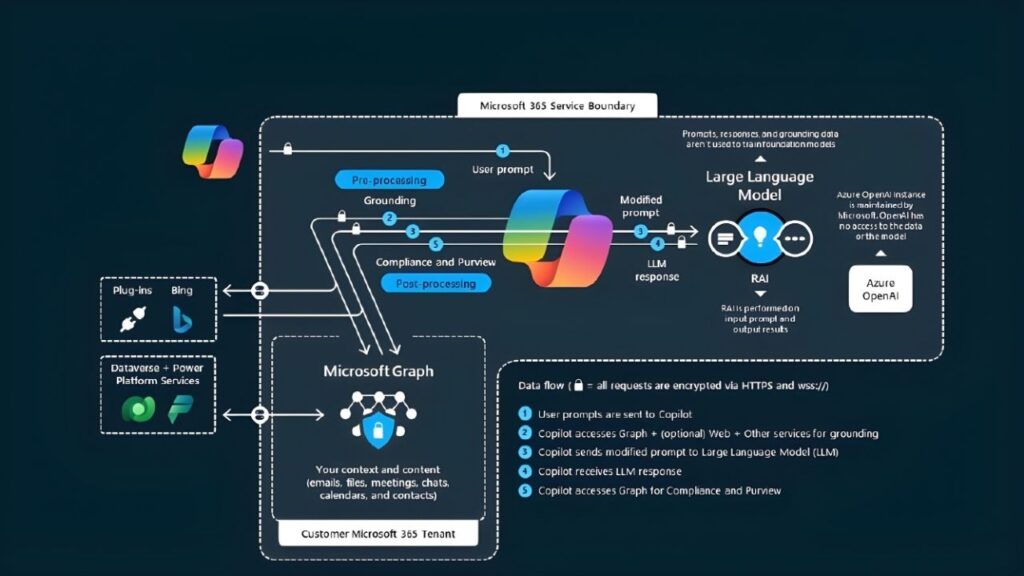
You might be wondering, “How does it actually know what to do?”
It’s not magic, though it can feel like it. Copilot works by connecting three things:
- The Microsoft 365 Apps: The frontend tools you use (Word, Teams, etc.).
- Your Data (The Microsoft Graph): This is the secure connection to your emails, files, and meetings.
- Large Language Models (LLMs): The AI “brain” (like GPT-4) that understands and generates human-like text.
When you type a request into Copilot, it doesn’t just send that text to the internet. It first looks at your internal data to understand the context (who you are working with, what project you are discussing). Then, it sends that context to the AI model to generate a response. Finally, it checks that response for security and compliance before showing it to you.
Here is a simple flow of how it processes a request:
Input (Your Prompt) → Microsoft Graph (Adds Context/Data) → Copilot AI (Processes Request) → Output (Your Result)
A note on security:
For our CIOs and security leads reading this—Microsoft Copilot inherits your existing security, compliance, and privacy policies. It doesn’t use your data to train the public AI models. Your data stays within your enterprise boundary.
Microsoft Copilot Features
The best way to understand Copilot is to see what it does in the specific apps you use daily. Here is a breakdown of the key features across the suite.
✨ Copilot in Word
- Draft blogs, reports, and emails: Simply type “Write a project proposal based on these notes,” and watch it generate a first draft in seconds.
- Rewrite & summarize: If a paragraph feels clunky, ask Copilot to “rewrite this to be more professional” or “make this more concise.”
- Document transformation: You can turn a text outline into a fully formatted document instantly.
📊 Copilot in Excel
- Data analysis: Instead of struggling with complex formulas, you can ask, “What are the sales trends for Q3?” Copilot will analyze the numbers and give you an answer.
- Formulas: Describe what you want to calculate in plain English, and Copilot will generate the correct formula for you.
- Charts: Ask it to “visualize this data,” and it will create professional charts to insert into your sheet.
- Insights: It can spot outliers or patterns in your data that you might have missed.
📧 Copilot in Outlook
- Smart replies: Copilot can draft responses to emails based on the tone you choose (short, long, professional, casual).
- Email summaries: If you are added to a long email thread, click “Summary by Copilot” to get a quick recap of who said what and what actions are needed.
- Coaching: It can check your email drafts and suggest improvements for clarity and tone.
💬 Copilot in Teams
- Meeting recap: This is a game-changer. If you join a meeting late, you can ask, “What did I miss?” Copilot will summarize the discussion so far.
- Action items: After a meeting, Copilot can generate a list of tasks and follow-ups based on the transcript.
- Chat summary: Get a quick summary of long chat threads so you don’t have to scroll back through days of messages.
🎯 Copilot in PowerPoint
- Create slides from text: You can give Copilot a Word document and say, “Create a 10-slide presentation from this file.” It will build the deck, including layouts and images.
- Design suggestions: It helps organize your bullet points into visual graphics and ensures your branding looks consistent.
- Speaker notes: It can automatically generate notes for you to read while presenting.
Microsoft Copilot Pricing (Overview)
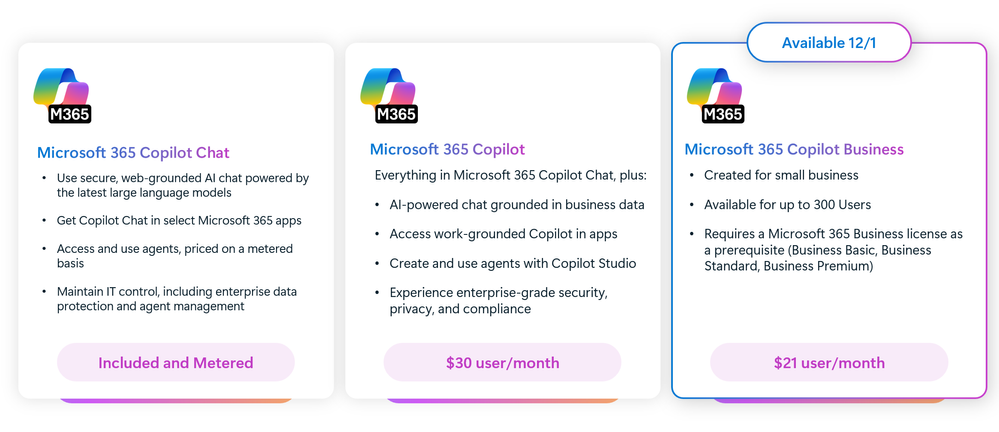
Understanding the cost is crucial for IT admins planning a rollout. Microsoft Copilot generally operates on an add-on model for enterprise users.
- Business & Enterprise Plans: For most organizations, Copilot for Microsoft 365 is an add-on subscription. You need a base license (like Microsoft 365 Business Standard, Business Premium, E3, or E5).
- Cost: The standard pricing hovers around a per-user/per-month fee (often approx. $30/£25 per user, though this varies by region and contract).
- Free vs. Paid: There is a free version of “Microsoft Copilot” available on the web (formerly Bing Chat), which uses public data. The paid “Copilot for Microsoft 365” is what connects securely to your business data (Word documents, emails, etc.).
For scalable solutions, it’s often best to start with a pilot group before rolling it out to the whole company.
For detailed pricing, read our Microsoft Copilot Pricing Guide.
Microsoft Copilot Prompts (Basic Idea)
The way you talk to Copilot matters. We call these instructions “prompts.”
Think of a prompt as delegating a task to a junior employee. If you are vague (“Write an email”), the result will be generic. If you are specific (“Write an email to the sales team about the Q3 targets, keep it encouraging, and mention the bonus scheme”), the result will be excellent.
Why prompts matter:
Good prompts save time. They reduce the need for back-and-forth corrections. We all want to save time and reduce stress, and mastering prompts is the quickest way to do that.
Tips to write better prompts:
- Be specific: Include the goal, context, and source.
- Give a role: Tell Copilot to “Act as a marketing manager” or “Act as an IT support agent.”
- Iterate: If the first answer isn’t perfect, treat it like a conversation. Say, “That’s good, but make it shorter.”
Examples of effective prompts:
- For Outlook: “Summarize this email thread and highlight any deadlines mentioned.”
- For Excel: “Analyze this sales data and tell me which region had the lowest growth.”
- For Word: “Draft a policy document for remote work based on the bullet points below.”
- For PowerPoint: “Create a presentation from this Word document.”
Check Out: Top 20 Microsoft Copilot Prompts
Common Microsoft Copilot Problems

No technology is perfect, and you may run into occasional hiccups. It is helpful to know what to expect so you can resolve issues quickly.
- Copilot not showing: This is the most common issue. It usually happens because the license hasn’t been assigned, or the app needs an update. Ensure your Microsoft 365 apps are on the “Current Channel” for updates.
- Copilot not working in specific files: Copilot generally works best with files saved in OneDrive or SharePoint (cloud storage). If a file is saved locally on your hard drive, Copilot might not be able to read it. AutoSave must be turned on.
- Slow performance: Generating complex responses takes significant computing power. Sometimes it takes a few seconds. Patience is key!
- Login/account issues: Ensure you are signed in with the correct work account (Entra ID) that has the Copilot license attached.
Don’t worry—most of these are simple configuration fixes.
Read our Microsoft Copilot Not Working – Fix Guide for detailed troubleshooting steps.
Microsoft Copilot vs Other AI Tools
You might be asking, “Why pay for Copilot when ChatGPT is free?”
The main difference is context and security. ChatGPT is amazing, but it lives outside your work environment. It doesn’t know about your specific meeting last Tuesday or the confidential budget file in your SharePoint.
Here is a quick comparison:
| Feature | Microsoft Copilot | ChatGPT (Free/Plus) | Google Gemini |
|---|---|---|---|
| Works inside M365 Apps | ✅ Yes (Word, Excel, etc.) | ❌ No | ❌ No |
| Business Security | ✅ Enterprise-grade | Limited (unless Enterprise) | Limited (unless Enterprise) |
| Access to Company Data | ✅ Yes (Graph) | ❌ No | ❌ No |
| Office Automation | ✅ Yes | ❌ No | ❌ No |
Key Takeaway: If you need to draft a generic poem, ChatGPT is great. If you need to summarize a confidential client strategy document, Copilot is the secure, integrated choice.
For a deeper dive, read our Microsoft Copilot vs Gemini– Full Comparison.
Is Microsoft Copilot Worth It?
This is the big question for our CIOs and adoption managers. Is the ROI there?
I work with Microsoft 365 tools every day. And I’ve seen how Copilot changes the way teams work. It’s not about replacing people—it’s about supporting them. Helping you do more with less stress.
Best for:
- Office Professionals: Anyone who writes, analyzes, or communicates daily will see immediate time savings.
- IT Teams: Great for scripting, troubleshooting, and drafting documentation.
- Managers: incredible for catching up on missed meetings and summarizing vast amounts of information.
- Enterprises: Organizations that need AI but cannot risk data leaking to public models.
Not ideal for:
- Casual users: If you only check email once a week, the cost might not justify the value.
- Non-Microsoft users: If your company runs on Google Workspace, this isn’t for you.
The ROI Reality:
Think about the cost of one hour of an employee’s time. If Copilot saves them just 15 minutes a day (and studies suggest it saves much more), the license pays for itself in less than a month. It allows your team to focus on high-value work—innovation, strategy, and customer relationships—rather than formatting slides or digging through inboxes.
Final Thoughts
Microsoft Copilot represents a major shift in how we work. It moves us away from being “task-doers” to being “task-managers,” supervising the AI as it handles the grunt work.
Adopting new technology can feel daunting, but Copilot is designed to be intuitive. You don’t need to learn code; you just need to use simple language.
If you are a leader looking to improve productivity metrics or an admin preparing for a rollout, the best next step is simple: try it. Identify a small group of champions, give them licenses, and watch how their workflows transform.
We have a library of guides to help you on this journey. Whether you need help with technical implementation or end-user adoption, we are here to support you.
Ready to dig deeper? Check out our related guides on Microsoft 365 security and adoption strategies.
FAQ
What is Microsoft Copilot used for?
Microsoft Copilot is used to automate daily tasks within Microsoft 365. It helps draft emails in Outlook, create presentations in PowerPoint, analyze data in Excel, summarize meetings in Teams, and write documents in Word. It is designed to save time and reduce repetitive administrative work.
Is Microsoft Copilot free?
There is a free web version of Copilot (formerly Bing Chat) available to everyone. However, “Copilot for Microsoft 365,” which integrates with Word, Excel, and your business data, requires a paid subscription add-on to your commercial Microsoft 365 license.
Does Copilot replace ChatGPT?
Not necessarily. They serve different purposes. ChatGPT is excellent for general creativity and tasks unrelated to your specific business files. Microsoft Copilot is better for work tasks because it is secure and has access to your company documents, emails, and calendar.
Is Copilot secure?
Yes. For business users, Copilot inherits your existing Microsoft 365 security, compliance, and privacy policies. Microsoft does not use your organization’s data to train the public foundational AI models, ensuring your data remains within your control.
How do I enable Copilot?
If you have purchased a license, an IT Admin must assign it to your user account in the Microsoft 365 Admin Center. Once assigned, you may need to update your Office apps. Copilot buttons will then appear in the ribbon of apps like Word and Excel.