



Microsoft Copilot is changing how people work. But many users don’t fully understand what happens behind the scenes when they type a prompt and get a response.
Let’s fix that.
This guide explains how Microsoft Copilot works in simple terms. You’ll learn what powers it, how it accesses your data, and why it’s secure. No technical jargon—just clear, practical explanations.
What Powers Microsoft Copilot?
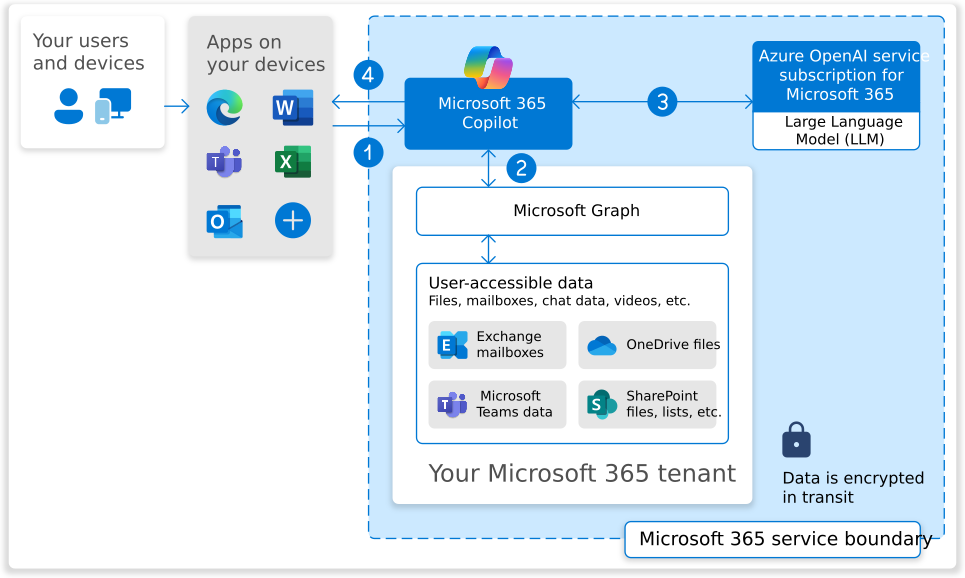
Microsoft Copilot isn’t magic. It’s a combination of three key components working together:
AI models (LLMs)
Copilot uses large language models—advanced AI systems trained to understand and generate human-like text. These models process your prompts and create relevant responses.
Your organisational data
Copilot connects to Microsoft Graph, which stores information about your emails, documents, chats, calendar, and more. This gives Copilot the context it needs to provide useful answers.
Microsoft 365 apps
Copilot works directly inside Word, Excel, PowerPoint, Outlook, Teams, and other Microsoft 365 apps. It understands what you’re doing and helps you complete tasks faster.
Think of it this way: AI brain + Your data + Microsoft apps = Copilot output.
Step-by-Step: How Microsoft Copilot Works
Here’s what happens when you use Microsoft Copilot:
Step 1: You Give a Prompt
You type a request into Copilot. It could be anything from “Summarise this document” to “Create a sales report based on last month’s data.”
The quality of your microsoft copilot prompts matters. Clear, specific prompts get better results.
Step 2: Copilot Accesses Relevant Data
Copilot searches your Microsoft 365 data to find information that helps answer your prompt. This includes:
- Emails
- Documents
- Calendar events
- Teams chats
- SharePoint files
Important: Copilot only accesses data you have permission to view. If you can’t see a file or email, neither can Copilot.
Step 3: AI Processes the Request
The AI model analyses your prompt and the data Copilot gathered. It understands what you’re asking for and generates a structured, relevant response.
This happens in seconds.
Step 4: Copilot Generates Output Inside the App
The response appears directly in the Microsoft 365 app you’re using:
- Word: Draft paragraphs or rewrite sections
- Excel: Suggest formulas or analyse data
- Outlook: Summarise email threads
- Teams: Recap meetings or chat conversations
- PowerPoint: Create slides from documents
The output is editable. You can refine it, change it, or start over with a new prompt.
How Microsoft Copilot Works in Different Apps
Copilot adapts to the app you’re using. Here’s how it helps in each one:
In Word
- Draft new content from scratch
- Rewrite text to improve clarity
- Summarise long documents quickly
In Excel
- Analyse data and spot trends
- Create formulas automatically
- Generate charts and visualisations
In Teams
- Summarise meeting transcripts
- Pull out action items
- Recap chat threads
In Outlook
- Draft email replies
- Summarise long email threads
- Get coaching tips on tone and clarity
In PowerPoint
- Create slides from Word documents
- Suggest design improvements
- Generate presentations from prompts
These microsoft copilot features save time and reduce repetitive work.
Is Microsoft Copilot Secure?
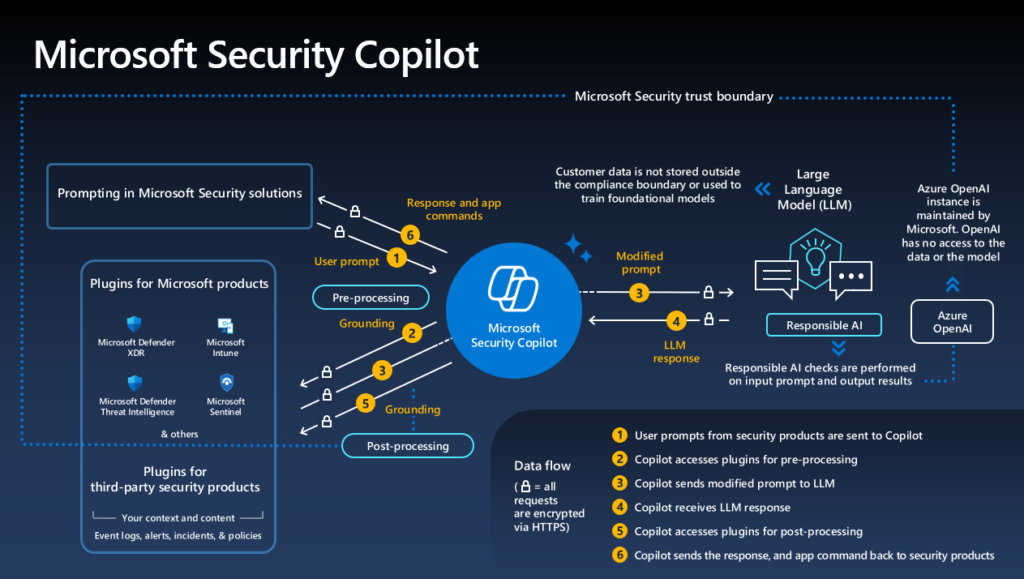
Yes. Microsoft Copilot follows enterprise-grade security standards.
Here’s what that means:
Respects user permissions
Copilot only accesses data you’re allowed to see. It can’t read files or emails you don’t have access to.
Uses Microsoft Graph
All data requests go through Microsoft Graph, which enforces security and access controls.
No cross-company data sharing
Your organisation’s data stays within your Microsoft 365 tenant. Copilot doesn’t share it with other companies.
Data isn’t used to train public models
Your prompts and data aren’t used to improve public AI models. Your information remains private.
Honors Conditional Access and MFA
If your organisation uses Conditional Access policies or multi-factor authentication, Copilot follows those rules.
What Makes Microsoft Copilot Different From Chatbots?
Microsoft Copilot isn’t like ChatGPT or Google Gemini. Here’s why:
Works inside Microsoft apps
Copilot is built into Word, Excel, Teams, and other tools you already use. You don’t need to switch between apps.
Uses company data securely
Unlike public chatbots, Copilot accesses your organisation’s emails, documents, and chats—with proper security in place.
Designed for workplace productivity
Copilot helps with real work tasks like drafting reports, analysing data, and summarising meetings. It’s purpose-built for business.
Common Misconceptions About How Microsoft Copilot Works
Let’s clear up a few myths:
❌ “Copilot reads all company data”
No. Copilot only accesses data you have permission to view. It respects existing security settings.
❌ “Copilot replaces employees”
No. Copilot is a tool that helps people work faster. It doesn’t make decisions or replace human judgement.
❌ “Copilot works like a normal chatbot”
No. Copilot is integrated into Microsoft 365 apps and uses your organisational data. It’s designed specifically for workplace tasks.
Understanding How Copilot Works Helps You Use It Better
Now you know how Microsoft Copilot works:
- You give a prompt
- Copilot accesses your data (with permission)
- AI processes the request
- You get a response inside the app
It’s secure, fast, and designed to make your work easier.
Want to explore all the features? Read our complete Microsoft Copilot guide to learn more about what it can do.
FAQs
How does Microsoft Copilot actually work?
Microsoft Copilot uses AI models (LLMs) combined with your organisational data from Microsoft Graph. When you enter a prompt, Copilot searches relevant data you have access to, processes it with AI, and generates a response inside your Microsoft 365 app.
Does Microsoft Copilot use my company data?
Yes. Copilot accesses emails, documents, chats, and other data stored in Microsoft 365—but only data you have permission to view. It respects existing security and access controls.
Is Microsoft Copilot safe?
Yes. Microsoft Copilot follows enterprise-grade security standards. It respects user permissions, doesn’t share data across organisations, and doesn’t use your prompts to train public AI models.
Does Copilot work offline?
No. Microsoft Copilot requires an internet connection to access your Microsoft 365 data and process requests using AI models.
What AI model powers Microsoft Copilot?
Microsoft Copilot uses large language models (LLMs), including models from OpenAI and other advanced AI systems. These models are integrated with Microsoft 365 to provide contextual, real-time assistance.
Can Copilot access files I don’t have permission to see?
No. Copilot only accesses data you’re authorised to view. If you can’t see a file or email, neither can Copilot.
Want to see all features? Read our Microsoft Copilot Complete Guide.

1 Comment
Pingback: What Are Microsoft Copilot Agents? A Complete Guide 2026 - The Lalit Blogs