



TL;DR: Microsoft’s September 2026 Copilot in SharePoint updates introduce personal skills, skill evaluations, tenant-aware HTML guidance, image analysis across document libraries, Teams notifications, and approval workflows — shifting SharePoint from a place to find information to a platform that helps you act on it.
SharePoint has always been where information lives. Files, policies, project docs, onboarding guides — it holds a lot. But finding the right information, doing something with it, and repeating that process without burning time? That’s been the harder part.
The September 2026 Copilot in SharePoint updates are aimed squarely at that gap. This isn’t a minor feature drop. Microsoft has pushed six meaningful updates that span three clear themes: reusable AI, measurable AI, and actionable AI.
If you’re a SharePoint user, site owner, developer, or IT leader, here’s what changed — and why it matters.
Official Website: What’s New in Copilot in SharePoint: September 2026
What’s New in Copilot in SharePoint in September 2026?
Before going feature by feature, here’s the full picture at a glance. Microsoft’s September roundup covers:
- Personal skills that follow you across SharePoint and OneDrive
- Skill evaluations for testing and improving AI quality
- Tenant-aware HTML guidance for secure, live SharePoint experiences
- Image analysis across document libraries
- Teams notifications triggered by SharePoint events
- Copilot-powered approval workflows
Each update builds on the others. Together, they push SharePoint Copilot further from “AI that answers questions” toward “AI that helps you get work done.”
Personal Skills: Reuse Your Copilot Work Across SharePoint and OneDrive
What is a Copilot skill in SharePoint?
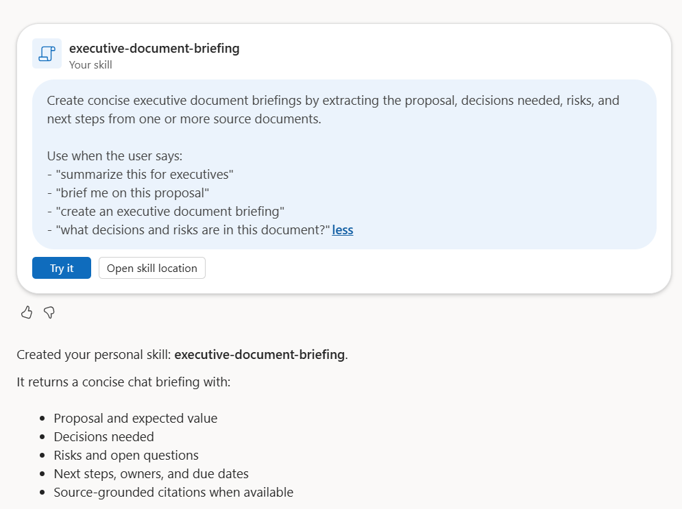
A skill is a reusable set of instructions you give Copilot — a way to package a capability so you don’t have to re-explain it every time.
Think about the difference between asking Copilot a one-time question and training it to handle a recurring task consistently. A one-time question gives you one answer. A skill gives you a repeatable, reliable behavior you can call on again and again.
How do SharePoint Copilot skills work with OneDrive?
With the September 2026 update, personal skills aren’t locked to a single location. Create a skill in SharePoint, and it travels with you into OneDrive too.
A practical example: a marketing professional builds a skill for reviewing campaign documents — checking tone, flagging missing sections, summarizing key messages. That same skill works when they’re looking at files in OneDrive. No rebuilding. No re-prompting.
Why does this matter?
- Consistency — Copilot behaves the same way across locations
- Reusability — You build once, use often
- Less friction — No repetitive setup every time you switch tools
- Better personalization — Copilot gets more useful over time, not less
Copilot Skill Evaluations: How Do You Know If Your AI Is Actually Working?
This one deserves attention. It’s easy to overlook — but it might be the most important update in the September release.
Why AI evaluation matters for organizations
Creating a skill is only the first step. Organizations need to know whether that skill actually does what it’s supposed to do. Consistently. Accurately. At scale.
There’s a big difference between an AI demo that looks impressive and a measurable AI experience that delivers reliable results day after day. Copilot skill evaluations close that gap.
How do Copilot skill evaluations work?
Evaluations let you test skill behavior, measure response quality, and identify weaknesses — so you can improve skills over time rather than assume they’re working correctly.
For businesses, this means:
- More consistent AI output — Skills do what you expect
- Higher user trust — People rely on AI more when it performs reliably
- Easier quality management — You can spot and fix problems early
- More controlled enterprise AI adoption — Governance becomes practical, not just theoretical
Microsoft explicitly positions evaluations as a way to test and improve skill quality. For any organization taking enterprise AI seriously, this is the feature that turns Copilot from an experiment into a managed capability.
Tenant-Aware HTML Guidance: Safer Live SharePoint Experiences
What is tenant-aware HTML guidance in SharePoint Copilot?
In plain terms: Copilot can now help create HTML-based experiences inside SharePoint — and it does so with awareness of your organization’s specific environment.
“Tenant-aware” means Copilot understands the boundaries of your SharePoint tenant. It respects your data, your permissions, and your organizational context when generating live content experiences.
Why do developers and IT teams care about this?
Without tenant awareness, AI-generated content could reference the wrong data, cross permission boundaries, or create experiences that don’t align with your governance policies.
With tenant-aware HTML guidance:
- AI-generated experiences stay within your organizational boundaries
- Enterprise data doesn’t leak into the wrong context
- Developers get more confidence when using AI to build live SharePoint content
- IT teams have better oversight of what Copilot creates
Security and governance have always been central to Microsoft 365. This update extends that commitment into AI-generated experiences.
Image Analysis Across SharePoint Document Libraries
What can Copilot do with images in SharePoint?
Most document libraries contain more than text. Diagrams, screenshots, scanned forms, charts, campaign assets — images hold real business information, and until now, Copilot couldn’t fully engage with them.
The September update changes that. Copilot can now analyze images stored in document libraries, letting users ask questions about visual content, extract useful information, and discover insights without opening every file manually.
Who benefits most from SharePoint Copilot image analysis?
- Marketing teams reviewing campaign visuals
- Product teams working with design diagrams or wireframes
- Operations teams examining process documentation with charts or photos
- Researchers working with scanned materials, screenshots, or data visualizations
This moves Copilot closer to genuinely multimodal AI — one that understands a SharePoint library the way a knowledgeable colleague would, not just the text in each document.
Turn SharePoint Information Into Teams Notifications
How do SharePoint-triggered Teams notifications work?
This is where the September updates shift from information to action.
When a specific event happens in SharePoint — a file reaches a certain status, a due date changes, a new document gets uploaded — Copilot can automatically send a notification to a Teams chat or channel.
The workflow is straightforward:
- A SharePoint event occurs
- Copilot detects the trigger
- A Teams message is sent to the right person or channel
Examples from Microsoft’s community discussion include notifying a team when a document becomes final, alerting a project channel when a deadline shifts, or messaging stakeholders when important content changes.
The business benefits are practical:
- Faster communication without manual follow-up
- Less time spent checking SharePoint for updates
- Better information flow across teams
- Fewer repetitive status-check meetings
Create Approval Workflows With Copilot in SharePoint
How does Copilot help build SharePoint approval workflows?
Approvals are one of the most common — and most tedious — business processes. With the September 2026 update, you can describe an approval workflow in plain language and let Copilot build it.
Example: “When a new PTO request is submitted, send it to the manager for approval and notify the requester when it is approved.”
That’s it. No manual configuration of every step. No technical setup required.
Potential use cases include:
- PTO and leave approvals
- Document sign-off processes
- Procurement and purchasing requests
- Marketing content reviews
- Policy and contract approvals
Business users can describe what they need. SharePoint handles the rest. This reduces dependency on IT for routine workflow configuration and makes SharePoint more accessible to people who just want to get work done.
September 2026 Copilot in SharePoint Updates — Summary
| Update | What It Does | Why It Matters |
|---|---|---|
| Personal Skills | Reusable skills across SharePoint and OneDrive | More consistent AI assistance |
| Skill Evaluations | Tests and measures skill quality | More reliable AI experiences |
| Tenant-Aware HTML Guidance | Creates secure live experiences | Better enterprise control |
| Image Analysis | Understands images across document libraries | More powerful content discovery |
| Teams Notifications | Connects SharePoint events to Teams | Faster communication |
| Approval Workflows | Creates workflows from natural-language instructions | Less manual process management |
What This Means for SharePoint Administrators
IT teams and administrators should take a close look at a few things before rolling out September’s updates:
- Who can create and deploy Copilot skills?
- What data can those skills access?
- How will skill evaluations be managed and monitored?
- Which workflows can trigger Teams notifications — and who controls that?
- How does tenant-aware HTML guidance interact with existing governance policies?
The updates introduce new AI capabilities. That means reviewing permissions, access controls, and governance policies to make sure everything stays aligned with your organization’s standards.
What Site Owners and Business Users Should Do Next
You don’t need to adopt everything at once. Start small.
For site owners:
- Identify repetitive content processes that could benefit from a reusable skill
- Look at where manual workflow steps slow things down
- Test approval workflows on low-risk processes first
For business users:
- Pick one recurring task you handle manually
- Create a skill for it
- Use evaluations to test whether it works the way you expect
- Connect a SharePoint event to a Teams notification and see what time it saves
Small starts lead to meaningful change. The goal isn’t to automate everything — it’s to find where Copilot genuinely reduces friction.
SharePoint Copilot Is Becoming an Action Layer
September 2026 marks something worth paying attention to.
Copilot isn’t simply answering questions anymore. Skills make AI reusable. Evaluations make AI measurable. Image analysis expands what Copilot understands. Teams notifications and approval workflows let Copilot help execute real work.
The shift looks like this:
Before: Search → Find information → Read → Decide → Act
Now: Ask → Understand → Create → Automate → Act
SharePoint is becoming the knowledge layer. Copilot is becoming the intelligence layer. Workflows and agents are becoming the action layer. That’s the bigger picture behind every feature in this update.
If your organization already uses SharePoint heavily, September’s Copilot updates are a good reason to identify the repetitive tasks, content processes, and workflows that AI can improve — and start there.
FAQs: Copilot in SharePoint September 2026
What is new in Copilot in SharePoint in September 2026?
Microsoft’s September 2026 update introduces personal skills that work across SharePoint and OneDrive, skill evaluations for testing AI quality, tenant-aware HTML guidance for secure live experiences, image analysis across document libraries, Teams notifications triggered by SharePoint events, and Copilot-powered approval workflows.
What are Copilot skills in SharePoint?
Copilot skills are reusable AI capabilities that let users define a specific behavior or task once and apply it consistently — rather than re-prompting Copilot from scratch each time. Skills make AI assistance more reliable and repeatable.
Can SharePoint Copilot skills work with OneDrive?
Yes. The September 2026 update lets personal skills travel across SharePoint and OneDrive. A skill you build for reviewing files in SharePoint works the same way when you’re using OneDrive.
How do Copilot skill evaluations work?
Skill evaluations let organizations test how a skill performs, measure the quality of its responses, and identify weaknesses. The goal is to improve skill quality over time and build a more reliable, trustworthy AI experience across the organization.
Can Copilot analyze images stored in SharePoint?
Yes. Copilot can now analyze images within SharePoint document libraries — asking questions about visual content, extracting information from diagrams or scanned documents, and surfacing insights from files that aren’t purely text-based.
Can Copilot create SharePoint approval workflows?
Yes. Users can describe an approval workflow in plain language — for example, a PTO request process — and Copilot builds it. This reduces the need for manual configuration and makes workflow creation accessible to non-technical users.
Can SharePoint trigger Teams notifications automatically?
Yes. The September update connects SharePoint events — like a document reaching final status or a due date changing — to automated Teams messages sent to the relevant people or channels.
Is Copilot in SharePoint secure for enterprise use?
Microsoft’s tenant-aware HTML guidance ensures that AI-generated experiences stay within your organization’s data boundaries. Combined with existing Microsoft 365 permissions, governance controls, and access management, Copilot in SharePoint is designed to operate within enterprise security frameworks.

1 Comment
Pingback: What's New in Microsoft 365 Copilot | September 2026 - The Lalit Blogs