



TL;DR: The Copilot Facilitator in Teams now proactively searches the web mid-meeting to answer unresolved questions — without you asking. AI Video Recap also landed, turning recorded meetings into narrated highlight reels in minutes.
If you have ever watched a 90-minute Teams recording at 2x speed just to find one decision, September 2026 has something valuable for you.
Microsoft did not just add features to Copilot in Teams this month. It shifted the fundamental model — from an AI that waits for your prompt, to one that actively contributes to the meeting as it happens.
If you are a project manager, a department head running weekly standups, or an IT administrator deciding which Copilot capabilities to enable, here is exactly what changed — and what you should do next.
Official Website: Microsoft Teams Blog — September 2026 Updates
What is new in Copilot for Microsoft Teams this month?
Two headline changes shipped in September 2026:
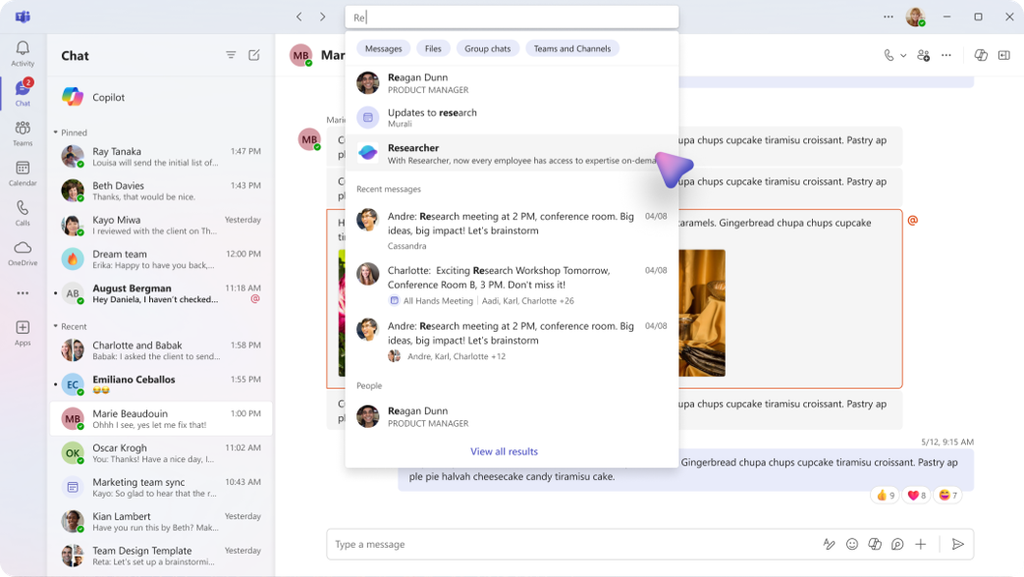
- Proactive Facilitator Agent — Copilot can now detect unanswered factual questions mid-meeting, run a web search automatically, and post the answer into meeting chat without being prompted.
- AI Video Recap — After a recorded meeting ends, Copilot generates a narrated highlight reel with key clips, screen shares, and spoken summaries — available under the Recap tab.
1. The Proactive Facilitator Agent: Copilot Answers Before You Have to Ask
What is the proactive Facilitator agent?
The Teams Facilitator agent has existed for several months as a virtual meeting chairperson — tracking agendas, generating real-time notes in Microsoft Loop, and summarising action items.
September 2026 adds something new: proactive knowledge resolution.
When someone in the meeting asks a factual question that nobody around the table can answer confidently, the Facilitator now detects the knowledge gap, performs a Bing-powered web search, and posts the answer directly into the meeting chat. No @mention required. No prompt typed.
In plain terms: imagine your team is discussing vendor timelines and someone asks, “What is Microsoft Ignite’s confirmed date this year?” Instead of someone opening a browser tab and breaking their attention from the call, the Facilitator posts the answer quietly in chat within seconds.
How does the proactive Facilitator work?
The feature works across the existing Facilitator setup:
- Enable it per meeting — The organiser opens the meeting options before or during the call and turns on Facilitator proactive search. It is off by default.
- Facilitator monitors the conversation — While participants speak, Copilot continuously transcribes and parses for unresolved factual questions (dates, figures, definitions, public facts).
- Search and post — When it detects a question that goes unanswered for more than a few seconds, it triggers a web search and posts a concise answer card in the meeting chat. This is designed to happen infrequently — typically once per meeting at most — so it does not flood the chat.
- All participants see it — The card is visible to everyone in the call, including external attendees without their own Copilot license.
What does the Facilitator already do?
Beyond the proactive search, the Facilitator continues to act as your virtual chairperson:
- Agenda tracking — Reads the agenda from the meeting invite and nudges participants when discussion drifts off-topic.
- Real-time AI notes — Uses Microsoft Loop components so participants can co-author and edit notes live as the meeting progresses.
- Action item capture — Documents decisions and assigns follow-ups automatically.
- Time management — Provides countdown indicators to keep segments on schedule.
Why it matters
- Fewer interruptions — Instead of a participant alt-tabbing to Google mid-meeting, the answer lands in chat while the conversation flows.
- Shared context — Everyone sees the same sourced answer, reducing misinterpretation and follow-up emails that start with “I looked it up and…”
- Low distraction design — Microsoft deliberately engineered the frequency limit. The Facilitator will not fire after every question — only when a genuine knowledge gap is detected and unresolved.
2. AI Video Recap: Catch Up on Any Meeting in Minutes
What is Teams Video Recap?
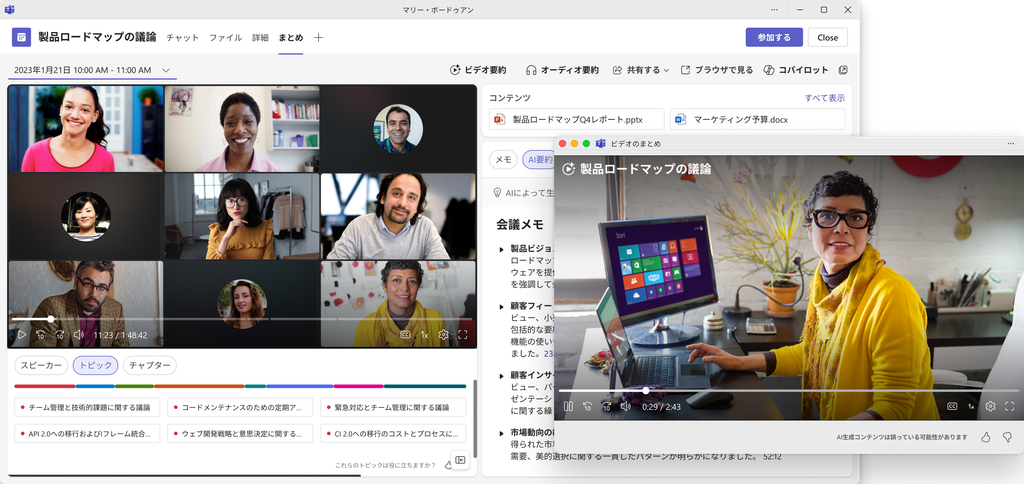
Video Recap is an AI-generated highlight reel of a recorded Microsoft Teams meeting. It automatically condenses key moments — including spoken discussions, screen shares, and PowerPoint Live segments — into a short, narrated summary.
You do not need to set it up manually. If your meeting was recorded with transcription enabled, Video Recap is generated automatically and appears in the Recap tab of the meeting chat or calendar event.
How does Video Recap work?
After the meeting ends and the recording is processed:
- Navigate to the Recap tab in the meeting chat or in your Teams calendar event.
- Click Video recap at the top of the tab.
- The player shows an AI-narrated reel with text overlays highlighting key discussion points, linked to exact timestamps in the full recording.
You can also prompt Copilot Chat: “Recap the vendor review meeting from yesterday” — and Copilot returns a summary with a direct link to the Video Recap.
What are the requirements for Video Recap?
| Requirement | Details |
|---|---|
| License | Microsoft 365 Copilot (Premium) |
| Recording | Cloud recording must be enabled in the meeting |
| Transcription | Auto-transcription must be on during the meeting |
| Duration | Meeting must be 10–90 minutes long |
| Language support | 23 languages including English, French, German, Spanish, and Chinese |
| Platform | Windows desktop, Mac desktop, Teams web — not supported on Teams mobile |
Why it matters
- Time back for busy professionals — A 60-minute all-hands meeting can be reviewed in under 5 minutes using the Video Recap instead of scrubbing through the recording.
- Latecomers and absentees — Someone who joined 20 minutes late or missed the call entirely can review the key discussion points before acting on action items.
- Storage-efficient — Video Recap data is stored alongside the original recording in SharePoint or OneDrive. It creates no separate video file and consumes minimal extra storage.
What do these updates mean for meeting culture?
The shift is gradual but significant.
- Before: Meetings ended → someone typed up notes → shared them hours later → participants misremembered decisions differently.
- Now: Copilot captures decisions in real-time, the Facilitator fills knowledge gaps as they emerge, and Video Recap gives absentees the story in five minutes.
The meeting record becomes reliable and immediate, not a product of someone’s selective memory or calendar availability.
Copilot for Teams September 2026 — Summary
| Feature | What it does | Why it matters |
|---|---|---|
| Proactive Facilitator | Auto-searches the web and posts answers to unresolved questions in meeting chat | Removes interruptions while keeping everyone in shared context |
| Frequency limit | Triggers infrequently — designed to fire at most once per meeting | Keeps the feature helpful rather than disruptive |
| External visibility | Facilitator answers visible to external guests without Copilot licenses | Ensures consistent meeting context across tenant boundaries |
| AI Video Recap | Narrated highlight reel from recorded meetings — generated automatically | Lets anyone catch up in minutes without watching the full recording |
| 23-language support | Video Recap works in 23 languages | Ready for multilingual global teams |
What this means for administrators
If you manage a Microsoft 365 tenant, consider these steps before enabling these features for your organization:
For the Facilitator proactive search:
- The feature is off by default and must be enabled per meeting by the organizer. No tenant-wide policy change is required to test it.
- If your organisation has strict information policies (e.g., meetings with sensitive commercial or legal discussions), communicate clearly to employees when proactive web search is and is not appropriate to enable.
- External participants receive Facilitator answers in meeting chat. If you run cross-tenant meetings with confidential agenda items, remind organizers to keep the feature disabled for those sessions.
For Video Recap:
- Confirm that cloud recording and transcription are both enabled in your Teams meeting policies (Teams Admin Center → Meeting policies → Recording & transcription).
- Recap data is retained according to your SharePoint/OneDrive retention policies. No new retention rules are required specifically for Video Recap.
- Remind employees that Video Recap is available for meetings between 10 and 90 minutes only.
What should you do next?
You do not need to master every option at once. Three practical steps to start with:
- Run a test meeting with Facilitator proactive search enabled — Schedule an internal 30-minute discussion, enable the feature, and watch how it handles any factual questions that come up.
- Check your last recorded meeting for a Video Recap — Navigate to any recent meeting with a cloud recording in your Teams calendar and look for the Recap tab. The Video Recap button appears once the recording is fully processed.
- Decide your policy on Facilitator for sensitive meetings — Update your internal AI usage guidance to note when proactive search should be left off (board calls, legal reviews, HR discussions).
FAQs: Copilot for Microsoft Teams
Do I need to prompt Copilot to use the Facilitator’s proactive search?
No. That is the whole point. The Facilitator monitors the meeting conversation and triggers a web search automatically when it detects an unanswered factual question. You can also @mention Facilitator at any time to ask specific questions manually.
Can external guests without a Copilot license see the Facilitator’s answers?
Yes. Facilitator posts answers in the meeting chat, which is visible to all participants regardless of their license type. External attendees see the same answer card as internal users.
Does Video Recap work with all recordings?
Not automatically. The meeting must be recorded with cloud recording enabled and transcription turned on. Locally-saved recordings are not processed for Video Recap. The meeting also needs to be between 10 and 90 minutes long.
Where is the Video Recap stored?
Video Recap data is stored alongside your original meeting recording in your SharePoint or OneDrive. No separate video file is created, and it follows the same data residency and retention rules as your existing recordings.
Is the Facilitator proactive feature always on?
No. It is disabled by default and must be manually switched on by the meeting organizer for each session. This gives organizers full control over when the agent is proactive.
Does Video Recap work on Teams mobile?
Not currently. Video Recap is available on Windows desktop, Mac desktop, and the Teams web app. Microsoft has not confirmed a mobile rollout date.
