



It’s 2026, and the pace of AI innovation isn’t slowing down. In fact, it’s accelerating. For IT Directors and Microsoft 365 Admins, this rapid evolution brings a mix of excitement and pressure. On one hand, you have tools that can genuinely transform productivity for your teams. On the other hand, you have the heavy lifting of governance, security, and change management.
We know the feeling. You want to roll out the latest features to help your users, but you also need to sleep at night knowing your data is secure. The challenge lies in balancing that feature adoption with compliance readiness. You don’t want to be the “department of no,” but you also can’t afford to be the department of “oops.”
The January 2026 updates for Microsoft 365 Copilot are designed to bridge that gap. Microsoft is focusing heavily on making Copilot more autonomous (hello, Agent Mode) while simultaneously giving admins better visibility and control. This guide breaks down exactly what is changing, why it matters for your enterprise, and the practical steps you need to take to keep your environment secure and efficient.
official update: What’s New in Microsoft 365 Copilot | January 2026
January 2026 Copilot Updates — What’s Here & Why It Matters
This month’s releases focus on deepening integration across the apps your team uses every day, specifically focusing on “agency”—the ability for AI to reason and act, not just chat.
1. Refreshed Microsoft 365 Roadmap for Copilot
Keeping up with feature releases can feel like a full-time job. The Microsoft 365 Roadmap has received a significant refresh this month, specifically designed to separate core app updates from Copilot and Agent updates.
Why it matters:
For Adoption Managers and IT Ops, this clarity is crucial. You can now filter specifically for “Agent” capabilities versus standard “Copilot” features. This helps you communicate changes to your stakeholders without confusing them with irrelevant technical details.
Your first step:
Visit the new roadmap view. Use it to sequence your internal communications. If a feature is landing in February (like some Agent modes for specific licenses), you can prep your training materials now so you aren’t caught off guard.
2. Agent Mode & New Copilot Agents
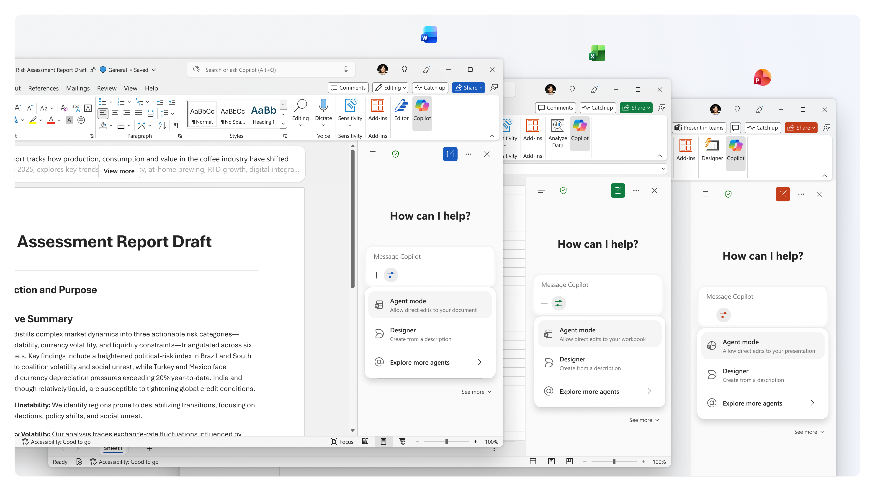
This is the headline feature for January. Agent Mode in Word, Excel, and PowerPoint allows the AI to work alongside users to edit and refine content actively. It doesn’t just suggest text; it makes changes while reasoning through them.
Enterprise scenario:
Imagine a project manager needing to reformat a 50-page proposal. Instead of asking Copilot to “write a summary,” they can use Agent Mode to “restructure this document to match our new branding guidelines.” Copilot will show its work, explaining why it made specific changes, giving the user transparency and control.
Admin note:
Be aware of the rollout timing and license differences.
- M365 Copilot License Holders: You likely saw Agent Mode in Excel (Desktop/Mac) arrive in January.
- Copilot Chat Users (No full license): Agent mode for web versions of Word, Excel, and PowerPoint begins rolling out in February.
This staggered rollout means your power users will have different capabilities than your standard users for a few weeks. Prepare your help desk for questions about why Feature X works for Jane but not for John.
3. Voice Chats Reference Memory
Copilot can now “remember” details from previous voice interactions to make future conversations more helpful. This uses the personalization settings stored in the user’s account.
Enterprise scenario:
A field sales representative driving between clients can ask, “What was the last action item I discussed regarding the Contoso account?” Copilot references stored memory to provide the answer hands-free, without the rep needing to pull over and search through logs.
Privacy & admin controls:
Security is the top priority here. Users cannot modify memories directly inside the voice chat—this is a safety guardrail. However, all referenced memories are visible and manageable in their personalization settings. As an admin, ensure your governance policies are updated to reflect that voice interactions are now stateful (they have memory) rather than stateless.
4. Outlook Natural Language & Voice
Outlook mobile is getting a major hands-free upgrade. Users can now use voice commands to triage their inboxes.
Enterprise scenario:
Your executives can clear their unread emails during their commute. They can say, “Summarize the emails from the Finance team and archive the rest.” Copilot handles the flagging, archiving, and summarizing.
Productivity impact:
This reduces the “email tax”—the time spent just sorting mail. Furthermore, users can now set up automatic replies using natural language. Instead of navigating complex menus, a user can type (or say), “Set an auto-reply for my vacation next week, directing urgent issues to Sarah,” and Copilot configures it.
5. Copilot Notebook Ground Agents
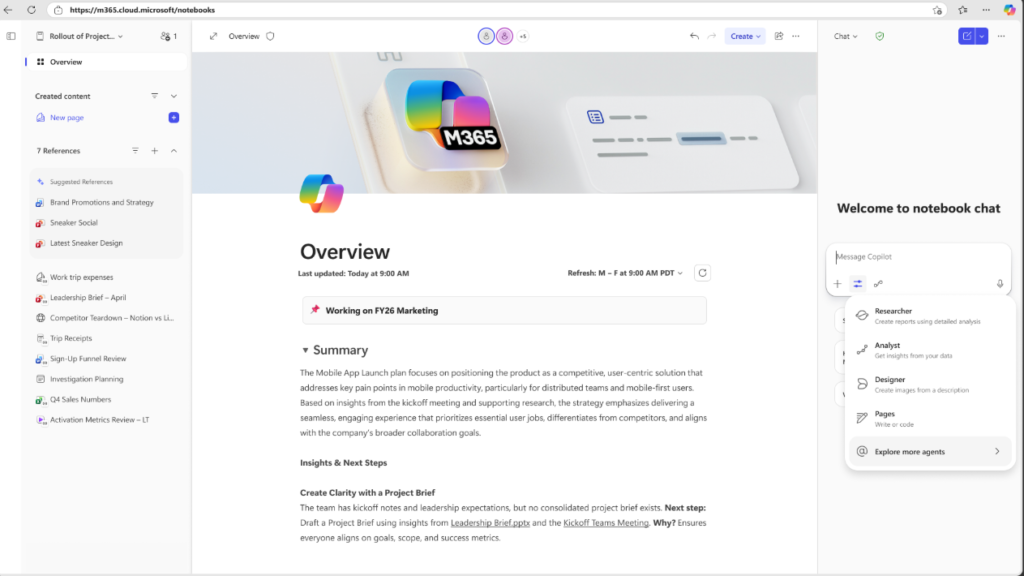
“Grounding” is a technical term for a simple concept: giving the AI the right context so it doesn’t make things up. Users can now ground Copilot Agents directly on their Notebooks.
What it unlocks:
This allows for highly context-aware assistance. If a user has a Notebook filled with project notes, research, and meeting transcripts, they can point an Agent at that specific Notebook. The Agent then answers questions using only that verified information.
Implications:
This is a win for accuracy. It ensures that the answers your team gets are based on your internal data, not general internet knowledge.
6. Excel Local Workbook Support
Copilot now supports handling Excel workbooks stored locally on a device, rather than requiring them to be saved to OneDrive or SharePoint first.
Why it matters:
Speed and consistency. For finance teams working with massive, data-heavy spreadsheets, the latency of cloud syncing can sometimes slow down Copilot. Local support removes that friction.
Admin checklist:
While this improves performance, ensure your Data Loss Prevention (DLP) policies are robust. Just because a file is local doesn’t mean it should bypass your security protocols. Validate that your endpoint protection is active for these local interactions.
7. PowerPoint View-Only Copilot
Copilot is now available in “View-Only” mode for PowerPoint.
Use cases:
This is perfect for compliance officers or stakeholders who need to review a presentation but shouldn’t be editing it. They can ask Copilot to “Summarize the key points of this deck” or “Does this slide mention our Q3 goals?” without risking accidental edits to the master file.
Copilot Control & Admin Enhancements
Microsoft knows that with great power comes the need for great control. These updates are specifically for you, the admin.
Expanded Copilot Chat Insights
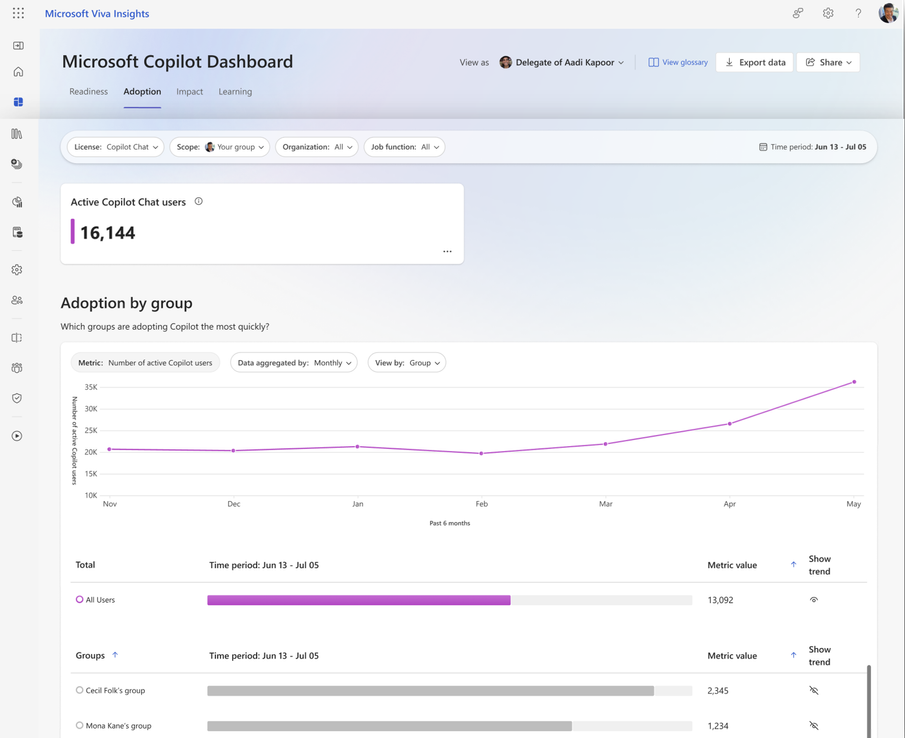
Previously, you needed a large number of active users to generate meaningful usage reports. The license threshold has been reduced, meaning smaller departments or pilot groups can now get rich insights.
Why it helps:
You can now track adoption trends in smaller test groups before doing a company-wide rollout. This data allows you to see if your “Champions” program is actually driving usage.
Microsoft Purview for Secure Copilot Adoption
As Copilot becomes more agentic (taking action on its own), data governance is critical. New Purview updates allow you to see exactly what data Copilot is accessing.
Example DLP policy:
You can set policies that prevent Copilot from summarizing or answering questions about documents labeled “Internal Only” if the user is accessing them from a mobile device. This granular control ensures seamless integration of AI without compromising security.
New Readiness & Admin Center Reports
New reports are available in the Admin Center that show technical readiness.
Deployment advice:
Review these reports first. They will flag if specific users are on outdated versions of Office apps that don’t support the new January features. Fixing these version mismatches is the easiest way to prevent help desk tickets.
FAQs
What are the major Copilot features released in January 2026?
The biggest releases are Agent Mode for Word, Excel, and PowerPoint, hands-free Voice Memory referencing, and expanded local workbook support in Excel.
How does Agent Mode differ from traditional Copilot Chat?
Traditional Copilot Chat is like an advisor—it answers questions and suggests text. Agent Mode is like a coworker—it can actively edit files, change formatting, and reason through tasks alongside you.
Can Copilot memory be controlled by privacy settings?
Yes. While Copilot can reference past conversations to be more helpful, users have full visibility and control over these memories in their personalization settings. They can delete memories at any time.
What admin controls exist for Copilot governance?
Admins can use Microsoft Purview to set Data Loss Prevention (DLP) policies, retention labels, and sensitivity labels that Copilot must respect. You can also track usage through the Admin Center.
Do all users get the January 2026 features at the same time?
No. There is a staggered rollout. Users with a full Microsoft 365 Copilot license generally get features like Agent Mode on desktop first, while Copilot Chat users (web-based) may receive them in February.
How can IT teams track Copilot adoption across the tenant?
Use the newly updated Copilot Chat Insights in the Admin Center. The reduced license threshold allows you to see adoption trends even for smaller pilot groups.
Key Takeaways / Admin Checklist
To make the most of these updates, here is your action plan for this month:
✔ Prioritize roadmap review: Sit down with your stakeholders and adoption leads to review the refreshed roadmap.
✔ Validate Copilot licensing: Ensure you know which users have full licenses vs. standard Chat access, as their features will differ this month.
✔ Update Purview policies: With local Excel support and Voice Memory, ensure your data governance policies cover these new entry points.
✔ Train internal champions: Get your power users comfortable with Agent Mode so they can demo it to their teams.
✔ Track adoption: Check the new Copilot Chat Insights to see if the new voice features are driving mobile usage.
Conclusion
The January 2026 updates mark a shift from AI as a chatbot to AI as an agent. For your organization, this means greater productivity and “hands-free” efficiency, but it also requires a steady hand on the steering wheel regarding governance.
By staying proactive with these admin enhancements and keeping your security protocols updated, you can ensure your organization gets all the benefits of Copilot without the risks. You’ve got this.
Need help navigating these changes? Connect with us on LinkedIn for daily tips, or subscribe to our monthly Copilot update brief to get these insights delivered straight to your inbox.
