



TL;DR: Manually tagging signed contracts in SharePoint has always been prone to human error. With SharePoint eSignature Smart Tagging, SharePoint’s background pipeline automatically scans uploaded PDFs for cryptographic signatures, adds system columns (Electronically Signed and Signature Provider), and categorizes agreements instantly—whether signed via native SharePoint eSignature, Adobe Sign, or DocuSign.
Managing legal contracts, non-disclosure agreements, and statements of work inside SharePoint document libraries has historically required a tedious trade-off.
Either you relied on employees to manually update metadata columns (which people frequently forgot to do), or developers had to build complex Power Automate flows hooked into external webhooks to monitor when signed PDFs landed in a folder.
If an un-tagged contract sat in a library, automated compliance rules couldn’t trigger, retention schedules failed to start, and legal audits required opening files one by one.
SharePoint eSignature Smart Tagging eliminates this friction with native, zero-touch document classification.
Here is how the feature works, what metadata it captures, and how SharePoint administrators can use it to automate compliance lifecycles.
What is Smart Tagging in SharePoint?
How does automatic signature detection work?
When a PDF document is uploaded or synced into an eSignature-enabled SharePoint document library, SharePoint’s background ingestion parser inspects the binary structure of the file:
- Cryptographic Certificate Inspection: It detects standard digital signature objects, public-key certificates, and cryptographic hashes embedded in the PDF.
- Provider Signature Identification: It determines the platform used to execute the agreement—differentiating between native SharePoint eSignature, Adobe Acrobat Sign, and DocuSign.
- Zero-Touch Metadata Injection: If a valid signature block is verified, SharePoint immediately writes system metadata to the document’s properties without requiring human input or running cloud flows.
Crucially, this detection also applies retroactively. Administrators can trigger a background library scan to classify thousands of historical PDF agreements already sitting in legacy archives.
What Metadata Columns Are Created?
When Smart Tagging is enabled on a document library, SharePoint introduces two optional system columns into your library schema:
| Column Name | Data Type | Possible Values | Workflow Purpose |
|---|---|---|---|
| Electronically Signed | Yes / No (Boolean) | Yes, No | Instantly filter signed agreements versus draft proposals. |
| Signature Provider | Single Line of Text | SharePoint eSignature, Adobe Acrobat Sign, DocuSign, Other | Track contract platform distribution and audit signing provenance. |
Because these are standard SharePoint metadata columns, users can sort, group, and filter views directly in the browser—for example, grouping agreements by Signature Provider or filtering a library view to show only contracts where Electronically Signed = Yes.
3 Big Benefits for Document Workflows
1. Automated Purview Retention & Records Management
In corporate compliance, the retention clock for an agreement usually starts the day the contract is executed—not the day the initial draft was created.
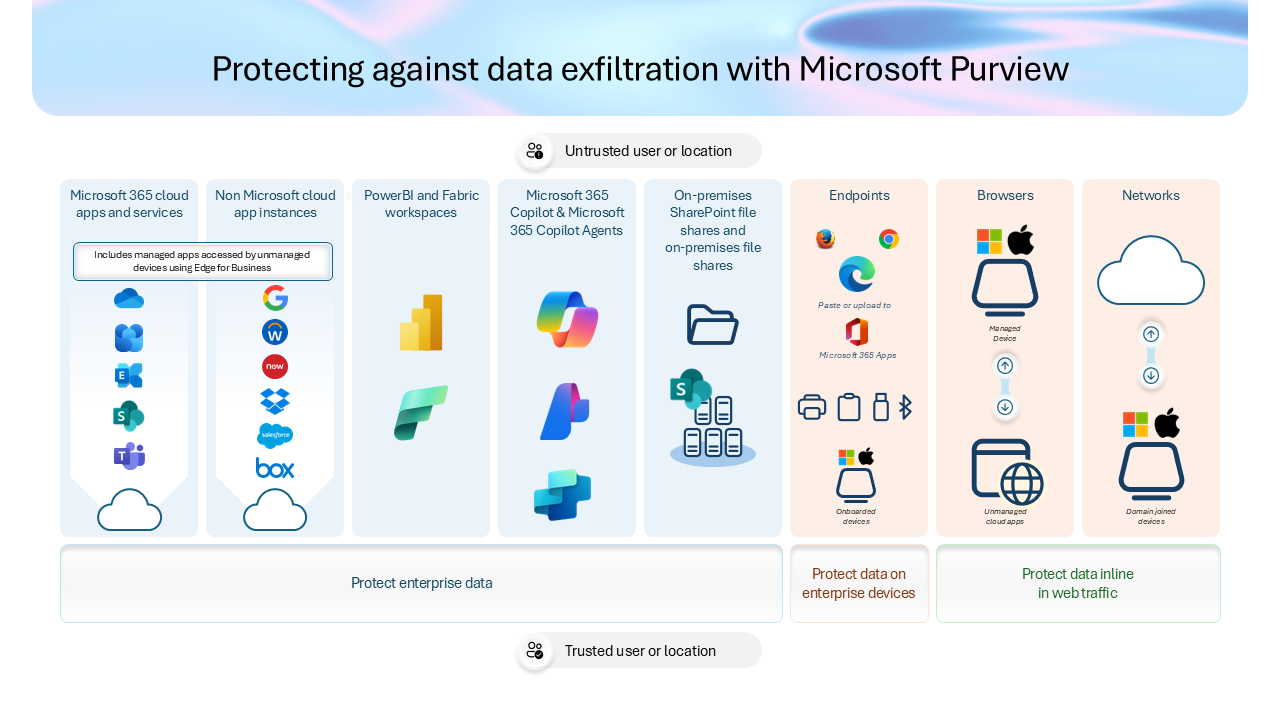
By configuring Microsoft Purview Retention Labels to look for Electronically Signed = Yes, organizations can:
- Automatically lock the document as an immutable record the moment the final signature is detected.
- Start the statutory 7-year retention countdown automatically.
- Prevent accidental deletion or unauthorized overwrites.
2. Streamlined Power Automate Workflows
Previously, cloud flows triggered on file creation had to parse document text or wait for third-party webhook callbacks.
With Smart Tagging, flow triggers become remarkably clean:
- Trigger: When a file is modified in a library
- Condition: If
Electronically SignedequalsYesandContract Statusis notActive - Actions: Update vendor records in Dataverse, dispatch a welcome email to the client, and archive the PDF into a secure legal repository.
3. Rapid Legal and Compliance Audits
During financial audits or legal discovery, compliance officers often spend days verifying whether every vendor agreement on file was properly executed.
Instead of downloading hundreds of PDFs, an auditor can create a single filtered view in SharePoint: Filter: Electronically Signed is 'No'
Any vendor agreement appearing in that view represents an unsigned risk that needs immediate procurement attention.
Traditional Tagging vs. SharePoint Smart Tagging
| Capability | Legacy Approach | SharePoint Smart Tagging |
|---|---|---|
| Tagging Mechanism | Manual user entry or custom Power Automate flow | Native background cryptographic parser |
| Setup Overhead | Complex webhook configuration and API keys | Native toggle in Library Settings |
| Provider Support | Often limited to one specific vendor API | Native, Adobe Sign, and DocuSign recognized |
| Historical Documents | Requires manual review or custom migration scripts | Scans existing library assets retroactively |
| Failure Rate | High (forgotten tags, broken webhook connections) | Near-zero (evaluated directly at the PDF file level) |
How to Enable Smart Tagging on a Library
- Open your target SharePoint Online document library.
- Click the gear icon (Settings) in the top right → select Library settings.
- Under Columns, click Add from existing site columns.
- Select the eSignature column group.
- Add Electronically Signed and Signature Provider to your default view.
- The background parser will automatically begin indexing newly added PDFs.
What Should SharePoint Administrators Do Next?
- Audit your primary contract repositories: Identify libraries housing vendor contracts, employment agreements, or NDAs where manual tagging is inconsistent.
- Add the Smart Tagging columns: Expose the
Electronically Signedcolumn in your default view to immediately expose any unsigned documents. - Align your Purview retention policies: Connect with your legal/compliance team to ensure executed contract retention schedules trigger based on this new metadata flag.
Related Microsoft 365 & Copilot Architecture Guides
- Copilot in SharePoint document management – In-depth architectural analysis and deployment patterns.
- enterprise document connectors – In-depth architectural analysis and deployment patterns.
- document workflow automation – In-depth architectural analysis and deployment patterns.
Official Microsoft Documentation & Administrative Resources
- SharePoint eSignature Overview – Official Microsoft documentation and service administration.
- Microsoft Syntex Content Services – Official Microsoft documentation and service administration.
- Microsoft Purview Records Management – Official Microsoft documentation and service administration.
Frequently Asked Questions
Does Smart Tagging modify the underlying PDF file?
No. Smart Tagging reads the PDF’s internal certificate metadata and stores the classification as SharePoint property metadata. The original binary hash and legal integrity of the signed document remain completely untouched.
What happens if a signed document is modified after upload?
If someone modifies or tampers with a digitally signed PDF, the cryptographic certificate breaks. The background scanner detects the invalid certificate state and updates the metadata accordingly.
Are scanned paper signatures detected by Smart Tagging?
No. Smart Tagging specifically detects cryptographic digital signatures (X.509 PKI certificates) generated by platforms like SharePoint eSignature, Adobe Sign, and DocuSign. It does not perform visual OCR on handwritten signatures stamped on scanned images.
Is there an additional per-document fee for Smart Tagging?
No. Smart Tagging is a built-in platform capability for SharePoint Online document libraries and does not consume separate pay-as-you-go consumption charges.
Can external custom connectors write to these columns?Electronically Signed and Signature Provider operate as protected system metadata columns. They are populated automatically by the platform parser, preventing users from manually spoofing signature validity.
