



TL;DR: Microsoft 365 Copilot’s July 2026 update introduces three new AI models (GPT-5.6, Claude Sonnet 5, and Claude Fable 5), expands agentic capabilities through Cowork, adds brand kit formatting across Word, Excel, and PowerPoint, and gives IT administrators stronger controls over agent usage, spending, and web grounding.
Let’s be honest, keeping up with Microsoft 365 Copilot updates every month is a job in itself. Features drop. Models change. New capabilities appear inside apps you use daily. And if you blink, you miss something that could genuinely save your team hours each week.
So here’s the July 2026 update — explained clearly, without the jargon.
This month’s changes are significant. Microsoft has expanded Copilot across core apps, introduced three new AI models, pushed deeper into agentic workflows through Cowork, and given IT administrators more tools to manage adoption, costs, and security. Whether you’re an IT leader, a business manager, or just someone who uses Microsoft 365 every day, there’s something here worth knowing.
Microsoft publishes these updates monthly. That cadence matters — because what looks like a small feature today often becomes a core part of how your organization works six months from now. The teams that pay attention early are the ones that get ahead.
Here’s exactly what changed in July 2026, why it matters, and how your organization can put it to use.
What’s New in Microsoft 365 Copilot in July 2026?
Here’s a quick summary of everything covered in this update.
Official Update: Microsoft 365 Copilot | July 2026
| Update Area | What Changed | Why It Matters |
|---|---|---|
| Copilot Chat | Add Word, Excel, PowerPoint agents via @mention | Create files without leaving the chat window |
| AI Models | GPT-5.6, Claude Sonnet 5, Claude Fable 5 | Stronger reasoning, better agentic workflows |
| Cowork | Local browser automation, event-triggered tasks, custom skills | Real workflow automation, not just Q&A |
| Copilot Notebooks | TXT and RTF file support | Reason over more file types inside Notebooks |
| Word | Drafting workflows for formatting and structure | Less manual document formatting |
| Excel | Brand kit skill for automatic formatting | Consistent, on-brand spreadsheets instantly |
| PowerPoint | Branded assets, comment management, mobile upgrades | Faster, more consistent presentations |
| Teams | Meeting recaps app in the sidebar | All AI meeting summaries in one place |
| SharePoint & OneDrive | Agent access insights heatmap | Spot unusual agent behavior visually |
| Admin | Agent 365 Dashboard, domain exclusions, cost management | Better visibility and control over AI usage |
Now let’s go deeper on each area.
1. Microsoft 365 Copilot Chat Updates
What changed?
Three things stand out this month in Copilot Chat.
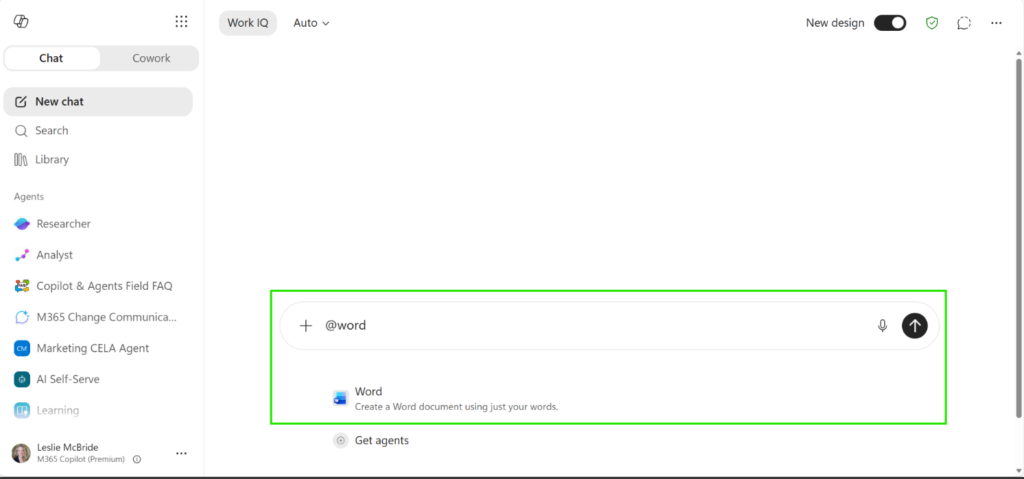
First — you can now add app agents directly inside the chat window. Type @Word, @Excel, or @PowerPoint inside a Copilot Chat prompt, and the relevant agent joins the conversation. You can generate a document, spreadsheet, or presentation without ever leaving chat.
Second — two new AI models are now available. OpenAI’s GPT-5.6 handles complex, multi-step reasoning tasks. Anthropic’s Claude Sonnet 5 is optimized for agentic work — tasks where Copilot needs to reason, plan, and take multiple steps to produce an output. GPT-5.6 is better for deep analysis. Claude Sonnet 5 is better for longer, more complex document drafting and data tasks.
Third — Copilot search answers are now more concise. Instead of lengthy responses in the search module, you get a shorter answer with a prominent link to continue the conversation in Copilot Chat.
Why this matters for employees
You spend less time switching between apps. You get smarter, more grounded answers. And the new models mean Copilot handles harder questions more reliably — not just simple lookups.
Think of use cases like:
- Summarizing files from a recent project and pulling out action items
- Drafting a proposal based on past meeting notes — directly inside chat
- Asking complex data questions and getting multi-step analysis back
Example prompt
“@Word draft a project proposal based on my recent meeting notes from last week.”
Copilot uses Claude Sonnet 5 to plan the structure, pull context from your work files, and generate a formatted document — all without you leaving Copilot Chat.
2. New Microsoft 365 Copilot Features Across Apps
Copilot in Word: Drafting Workflows
What’s new?
Copilot in Word now handles document structure automatically. It can:
- Insert and update tables of contents
- Manage headers, footers, page numbers, and dates
- Handle footnotes automatically
Why it matters
Formatting a long document is tedious. It’s also one of those tasks nobody wants to do — but someone always has to. Now Copilot handles it. You focus on the content. Copilot handles the structure.
Business use cases
- Policy and procedure documents
- Reports with multiple sections
- Legal or compliance documents that require consistent formatting
- Long proposals that need a professional layout quickly
Copilot in Excel: Brand Kit Skill
What’s new?
Type -kit inside an Excel Copilot prompt and Copilot automatically formats your workbook — tables, charts, and all — using your organization’s approved colors, fonts, and logos from the Microsoft 365 Brand Center.
Why it matters
Consistency is a real problem in large organizations. Teams send out reports with different color schemes, mismatched fonts, and off-brand charts. The brand kit skill fixes that instantly.
Business use cases
- Finance teams creating standardized budget reports
- Sales teams building pipeline dashboards
- HR teams formatting headcount or engagement data
- Any team presenting data to leadership or external stakeholders
Note: Power BI grounding and theme design capabilities are rolling out in August 2026.
Copilot in PowerPoint: Branded Assets, Comments, and Mobile
What’s new?
Three updates landed for PowerPoint in July:
- Branded assets: You can now pull company logos, icons, templates, and brand colors directly from the Microsoft 365 Brand Kit into any presentation
- Comment management: Copilot can write, reply to, and resolve comment threads inside slides
- Mobile enhancements (iOS/iPad): Copilot on mobile now supports multi-step action planning, background processing (so you can switch apps while Copilot works), and grounding based on the current slide or attached files
Why it matters
Presentations eat time. Hunting for the right logo, fixing colors, or responding to review comments all adds up. These updates cut that friction significantly.
Business use cases
- Marketing teams building on-brand client decks faster
- Executives reviewing presentations and resolving feedback via Copilot
- Field teams creating presentations on iPad or iPhone while away from a desk
Copilot in Outlook
No standalone Outlook-specific features were released in July 2026. However, Cowork’s new event-triggered task automation — covered in the next section — can monitor your Outlook inbox for specific senders, keywords, or topics, and prepare responses automatically. That’s a meaningful workflow upgrade even without a direct Outlook feature release.
Copilot in Teams: Meeting Recaps App
What’s new?
A dedicated Meeting Recaps app is now pinned in the Teams sidebar. It consolidates all your AI-generated meeting summaries in one place. You can browse, filter, and access recaps without searching through individual meeting chats.
Why it matters
Meeting summaries are only useful if you can find them. Now they live in one consistent location, organized and ready.
Business use cases
- Managers reviewing what was discussed across multiple team meetings
- Employees catching up on meetings they missed
- Leaders checking decisions and action items without watching recordings
3. Microsoft 365 Copilot Is Moving Toward Agentic Work
This is the bigger story behind July’s update — and it’s worth understanding clearly.
Most AI assistants work like this:
You ask → AI answers
That’s useful. But it’s limited.
Agentic AI works differently:
You set a goal → AI reasons through it, uses your data and tools, takes multiple steps, and produces an actual output
Microsoft 365 Copilot’s Cowork feature is where this shift is happening. And in July 2026, Cowork got three meaningful upgrades.
What changed in Cowork?
Local browser automation with Microsoft Edge
Cowork can now execute tasks across web-based systems — SaaS tools, internal portals, and business applications — directly through your Edge browser. You give Cowork a goal, and it navigates, clicks, and completes tasks on your behalf.
Event-triggered tasks
Cowork can now monitor Teams channels and Outlook email for specific conditions — a message from a particular sender, a keyword, or a topic. When the condition is met, Cowork automatically prepares a response or takes a defined action.
Custom skills and plugins
Organizations can now upload custom skills and plugins to extend Cowork into their own systems. Skills can be shared across the organization using drag-and-drop uploads. No complex IT deployment required.
A third new model — Claude Fable 5 — is now available in Cowork (off by default). It’s designed for long, ambitious, multi-stage projects that require sustained reasoning over extended periods.
What this means for businesses
The practical shift here is significant. You’re moving from:
| Before | With Cowork in July 2026 |
|---|---|
| Ask Copilot a question | Give Copilot a goal and let it execute |
| One-turn responses | Multi-step tasks completed end-to-end |
| Manual tool switching | Cross-system automation via browser |
| Static AI behavior | Event-triggered, context-aware automation |
| Generic workflows | Custom skills built for your organization |
This is what “agentic AI” means in practice. Not science fiction — it’s already shipping.
4. Microsoft 365 Copilot Updates for IT Administrators
Copilot Chat Usage Reports (GCC and DOD)
Government and defense organizations using Microsoft 365 GCC or DOD environments now have access to Copilot Chat usage reports. These show adoption trends and user-level data to help administrators make informed licensing decisions.
Domain Exclusion for Web Grounding
Administrators can now exclude up to 1,000 domains from Copilot’s web search results. This matters for compliance-conscious organizations that need to prevent Copilot from pulling information from specific external sources.
Agent 365 Dashboard
The new Agent 365 Dashboard gives administrators a centralized view of:
- Which agents are being used across the organization
- Adoption and retention trends by group or department
- Usage patterns over time
This helps IT leaders understand where AI adoption is strong — and where it needs support.
Cost Management Updates
Microsoft has improved spending controls for usage-based billing. The July updates improve:
- Spending alerts and threshold notifications
- Policy enforcement for Copilot consumption
- Overage handling so organizations don’t get caught off guard at month-end
This is increasingly important as organizations scale Copilot usage across large teams.
5. Security and Governance: What IT Leaders Should Know
More AI capability means more to govern. That’s the honest trade-off.
July’s updates add new tools to help. The Agent Access Insights Heatmap in SharePoint and OneDrive provides a visual map of agent activity across your file environment. Administrators can spot unusual access patterns — like an agent accessing files outside its expected scope — before it becomes a problem.
Combined with Microsoft Purview’s data security and compliance capabilities, IT teams now have more visibility into what Copilot agents are doing, which files they’re accessing, and whether that activity looks normal.
A few things worth thinking about for your organization:
- Define which data agents can access. Not every agent needs access to everything.
- Set domain exclusions for web grounding if you operate in a regulated industry.
- Review the Agent 365 Dashboard regularly. Watch for agents with high usage but low retention — that may signal a poor user experience or a mismatch between the agent’s purpose and actual needs.
- Work with Microsoft Purview to apply sensitivity labels and data loss prevention policies to AI-generated outputs.
The goal isn’t to restrict AI — it’s to use it responsibly.
6. How These Microsoft Copilot Updates Can Improve Business Productivity
Features are useful. But use cases are what actually change how your team works. Here’s how different departments can apply July’s updates.
Sales Teams
- Use Copilot Chat with Claude Sonnet 5 to summarize customer conversation history before a call
- Use event-triggered Cowork tasks to monitor inbound emails from key accounts and prepare draft responses
- Use PowerPoint branded assets to build client-ready decks in minutes
- Use Excel brand kit formatting to send consistent pipeline reports to leadership
Marketing Teams
- Build on-brand presentations using PowerPoint’s branded assets integration
- Use Copilot Notebooks (now supporting TXT and RTF files) to reason over research notes and transcripts
- Use Cowork’s browser automation to pull campaign performance data from web-based tools
- Draft content briefs inside Copilot Chat using @Word
HR Teams
- Use the Meeting Recaps app to track action items from hiring committee meetings
- Use Word drafting workflows to format policies and handbooks automatically
- Use event-triggered Cowork tasks to monitor specific keywords in HR-related email threads
- Build standardized employee survey reports in Excel with brand kit formatting
Finance Teams
- Use Excel brand kit skill to produce consistent, board-ready financial reports
- Use Cowork to automate repetitive monthly reporting workflows
- Use Copilot Chat with GPT-5.6 for complex financial scenario analysis
- Track AI usage costs via the new Cost Management admin controls
IT Teams
- Use the Agent 365 Dashboard to monitor Copilot adoption across departments
- Set domain exclusions for web grounding to meet compliance requirements
- Use the Agent Access Insights Heatmap to detect unusual agent behavior in SharePoint
- Deploy custom Cowork skills to automate internal IT request workflows
7. Microsoft 365 Copilot July 2026 — What Has Actually Changed?
Here’s a simple before-and-after view.
| Before July 2026 | With July 2026 Updates |
|---|---|
| Single AI model available | Three models: GPT-5.6, Claude Sonnet 5, Claude Fable 5 |
| Create files in separate apps | @mention agents inside Copilot Chat |
| Manual document formatting | Automatic drafting workflows in Word |
| Manual spreadsheet branding | Brand kit skill in Excel with -kit command |
| Generic PowerPoint building | Branded assets, comment management, mobile support |
| Meeting summaries scattered across chats | Centralized Meeting Recaps app in Teams |
| Limited Cowork automation | Browser automation, event triggers, custom skills |
| Basic admin reporting | Agent 365 Dashboard, domain exclusions, cost controls |
| Reactive AI assistance | Event-triggered, agentic workflows |
8. Who Should Pay Attention to These Microsoft Copilot Updates?
Microsoft 365 Administrators
You have new tools this month — and you should use them. The Agent 365 Dashboard, domain exclusion controls, cost management updates, and the Agent Access Insights Heatmap all give you better visibility and control. Review each one. Understand what your organization is consuming, and where adoption is lagging.
CIOs and IT Leaders
The move toward agentic AI is real and it’s accelerating. Cowork’s browser automation and event-triggered tasks represent a meaningful shift from AI assistance to AI execution. Think about where in your business that matters most — and start planning for it now, not later.
Business Leaders
Your teams can now automate workflows that previously required manual effort at every step. The question isn’t whether Copilot can help — it’s which processes to tackle first. Start with the most repetitive, time-consuming tasks your teams do every week.
Microsoft 365 Users
Three things are worth trying immediately:
- Type
@Wordor@Excelinside Copilot Chat and create a file without switching apps - Open the new Meeting Recaps app in Teams and review your last five meeting summaries
- Type
-kitin an Excel Copilot prompt and watch it apply your brand formatting instantly
How to Prepare Your Organization for the Latest Microsoft 365 Copilot Features
Here’s a practical five-step framework.
Step 1: Audit Current Copilot Usage
Before adding new capabilities, understand what’s already happening. Use the Admin Center and the new Agent 365 Dashboard to identify:
- Which users have Copilot licenses
- Which users are actively using Copilot
- Which departments have low adoption
- Which use cases are generating the most value
Step 2: Identify Repetitive Workflows
Look for tasks your teams do every week that involve:
- Drafting or formatting documents
- Summarizing emails or meetings
- Creating reports or presentations
- Analyzing data in spreadsheets
- Monitoring inboxes for specific topics
These are your highest-value automation targets.
Step 3: Establish AI Governance
Define the rules before scaling. At minimum, cover:
- Which data can agents access?
- Which domains should be excluded from web grounding?
- What sensitivity labels apply to AI-generated content?
- Who approves new Cowork custom skills before deployment?
Step 4: Train Employees
Training doesn’t have to be complex. Focus on:
- How to write effective Copilot prompts
- How to verify AI-generated outputs before using them
- App-specific capabilities — especially the new July features
- When to use GPT-5.6 vs. Claude Sonnet 5
Step 5: Measure ROI
Track what actually changes. Useful metrics include:
- Time saved on document creation and formatting
- Reduction in meeting follow-up time (thanks to Meeting Recaps)
- Copilot adoption rate by department
- Number of active Cowork workflows deployed
- Licensing utilization vs. active usage
Microsoft 365 Copilot July 2026 Updates — Key Takeaways
- Three new AI models — GPT-5.6, Claude Sonnet 5, and Claude Fable 5 — give Copilot stronger reasoning and better agentic capabilities
- In-chat agent integration means you can create documents, spreadsheets, and presentations without leaving Copilot Chat
- Cowork now automates real workflows — browser-based tasks, event-triggered actions, and custom skills built for your organization
- Brand kit formatting lands in both Excel and PowerPoint, making consistent, on-brand outputs much faster
- The Meeting Recaps app gives Teams users a centralized place for all AI-generated meeting summaries
- IT administrators have new tools for agent governance, spending control, domain exclusion, and adoption tracking
- Agentic AI is not a future concept — it’s shipping now, and organizations that build workflows around it early will move faster than those that wait
Frequently Asked Questions
What is new in Microsoft 365 Copilot in July 2026?
July 2026 introduces three new AI models (OpenAI GPT-5.6, Anthropic Claude Sonnet 5, and Anthropic Claude Fable 5), in-chat agent integration for Word, Excel, and PowerPoint, expanded Cowork automation including browser-based task execution and event-triggered workflows, brand kit formatting in Excel and PowerPoint, a new Meeting Recaps app in Teams, and new admin controls including the Agent 365 Dashboard, domain exclusions for web grounding, and improved cost management tools.
What are the latest Microsoft Copilot features available right now?
As of July 2026, the most significant new capabilities include: @mention app agents inside Copilot Chat to create files without switching apps; GPT-5.6 for complex multi-step reasoning; Claude Sonnet 5 for agentic document drafting and analysis; Cowork browser automation for executing tasks across web-based tools; the -kit command in Excel for instant brand formatting; branded assets in PowerPoint; and the centralized Meeting Recaps app in Teams.
Is Microsoft 365 Copilot becoming more agentic?
Yes. The clearest signal is Cowork. Traditional Copilot works in one turn — you ask, it answers. Cowork operates differently: you give it a goal, and it reasons through multiple steps, uses your data and tools, and produces a complete output. July’s additions — browser automation, event-triggered tasks, and custom skills — significantly expand what Cowork can do autonomously on your behalf.
How can businesses benefit from the July 2026 Copilot updates?
The benefits depend on the team. Sales teams can automate inbox monitoring and proposal drafting. Marketing teams can build on-brand presentations faster. Finance teams get consistent, formatted reports with less manual effort. HR teams can track meeting outcomes more easily with the Meeting Recaps app. IT teams gain better visibility into agent usage, costs, and security through the new admin tools.
Do Microsoft 365 administrators need to update their Copilot strategy after July 2026?
Yes — particularly around agent governance. The expansion of Cowork and the introduction of the Agent 365 Dashboard mean administrators now need to actively monitor agent activity, not just user adoption. The new domain exclusion controls and cost management updates also require attention, especially for organizations scaling Copilot usage across large teams or operating in regulated industries.
How can organizations increase Microsoft 365 Copilot adoption?
Start with use cases, not features. Identify the most repetitive tasks in each department, connect them to specific Copilot capabilities, and run focused training sessions on those workflows. Build a small group of Copilot champions in each team. Measure adoption regularly using the Admin Center and Agent 365 Dashboard. Share wins internally — real examples from real colleagues drive adoption faster than any top-down mandate.
The Direction Is Clear — Here’s What to Do Next
Microsoft 365 Copilot is no longer just a chatbot inside your apps. July 2026’s updates push it further toward AI that plans, acts, formats, automates, and governs — across your entire Microsoft 365 environment.
The right question isn’t “What did Microsoft release this month?” It’s “Which of these capabilities can create real, measurable value for our organization right now?”
Pick one. Test it. Measure it. Then scale it. That’s how the organizations moving fastest with Copilot are actually doing it — one workflow at a time.
