



TL;DR: For the past year, using Copilot was a solo experience. You chatted, got an answer, and pasted it elsewhere. Copilot Workspaces (evolving from Copilot Notebooks) changes this by creating persistent, shared team environments where multiple colleagues can co-author documents with live cursors alongside AI. Coupled with Copilot Automations, routine multi-step Cowork tasks now execute automatically on schedules or incoming event triggers.
One of the most frequent criticisms of early generative AI deployments in the enterprise was isolation.
You had your private chat window. Your colleague had theirs. If both of you were working on the same RFP or customer proposal, you had to manually copy prompt outputs into a shared document or email thread. Context had to be rebuilt from scratch every single morning.
Microsoft’s latest architectural rollout solves this disconnect with Copilot Workspaces and Copilot Automations.
Here is how these two features transform Copilot into a true multiplayer operating environment.
What is a Copilot Workspace?
How does it differ from Copilot Projects?
To understand Workspaces, it helps to look at how Microsoft organizes work inside the redesigned Copilot app:
- Copilot Projects (Individual): A personal workspace pinned to your Home navigation. Projects store your private chats, research notes, and personal scratchpads for tasks you manage alone.
- Copilot Workspaces (Multiplayer): A shared collaborative space built for teams. Any member invited to the Workspace can view the prompt history, see grounded files, and interact with Copilot simultaneously.
In a Workspace, team members see each other’s live presence via multi-colored cursors. If a project manager asks Copilot to “Summarize the risks from the attached engineering spec,” the entire team sees the output live and can refine the response collaboratively.
1. Persistent Context: No More Re-Uploading Files
Why is persistent context a game changer?
Anyone who has worked extensively with AI knows the fatigue of prompt staging:
- You attach four PDFs.
- You explain your company’s tone and brand guidelines.
- You define what success looks like.
- Then, three days later, your session expires and you have to repeat the entire setup.
In a Copilot Workspace, context is persistent:
- You link designated SharePoint document libraries, OneDrive folders, or meeting transcripts once.
- Every teammate who joins the Workspace inherits that exact grounding automatically.
- Team members can ask follow-up questions weeks apart without losing the foundational baseline.
2. Copilot Automations: Putting Cowork on Autopilot
How do Automations work?
While Workspaces provide the collaborative room, Copilot Automations provide the digital hands.
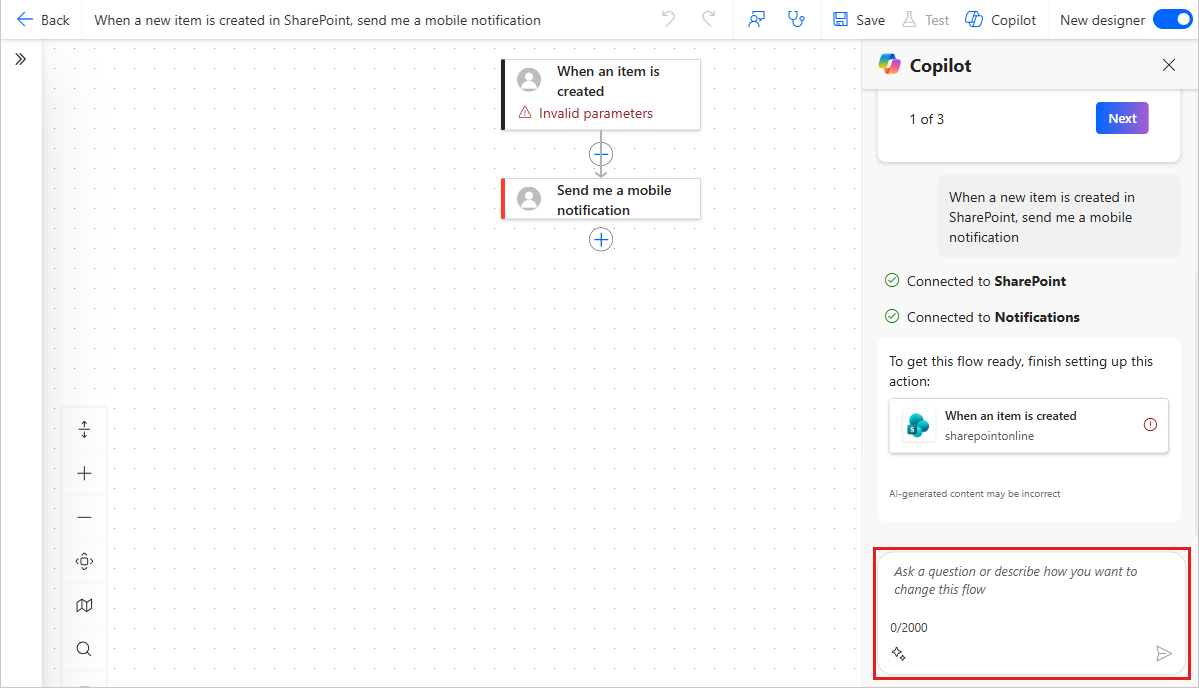
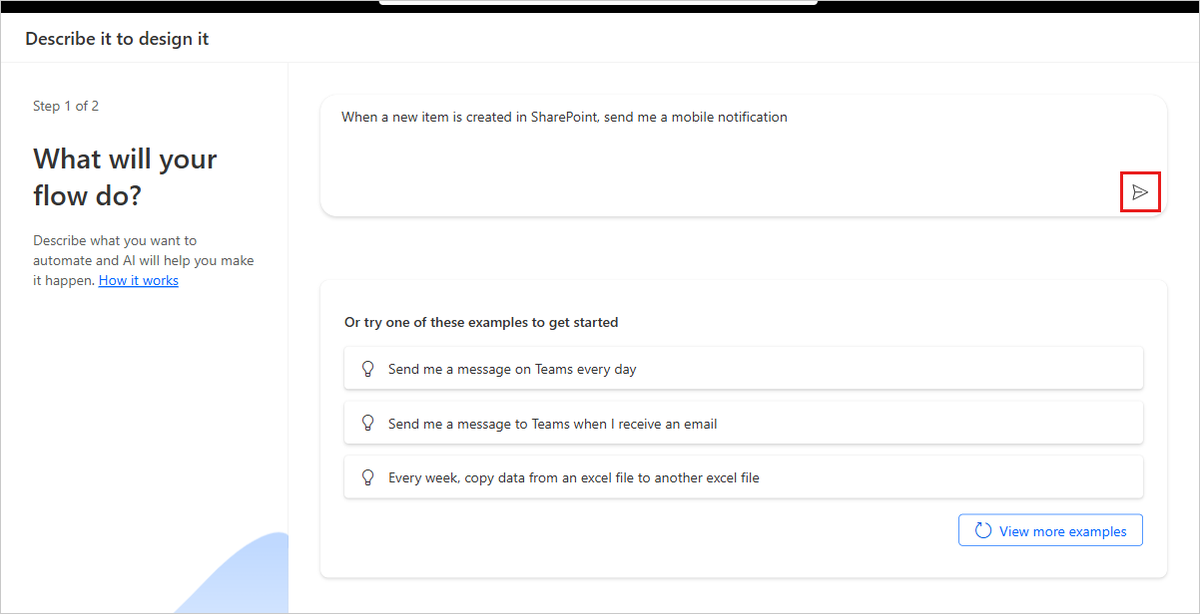
Automations allow you to take complex, multi-step Copilot Cowork tasks and run them asynchronously without sitting at your desk typing prompts.
Automations operate in two primary modes:
| Automation Trigger | Real-World Scenario | How It Operates |
|---|---|---|
| Scheduled Prompts | Weekly project digest | Every Friday at 4 PM, Copilot scans the Workspace’s linked folders, drafts a status report, and prepares it for manager review. |
| Event-Driven Triggers | Customer inquiry triage | When an email with the subject “Vendor RFP” arrives in a shared inbox, Copilot extracts specifications, matches them against inventory docs, and posts an evaluation card in Teams. |
3. Human-in-the-Loop Governance
Does Copilot take actions without permission?
No. Microsoft designed Automations with strict human-in-the-loop safeguards.
When an Automation triggers an external action (such as sending an email to a client, updating a CRM record, or scheduling a meeting):
- Copilot pauses execution before finalizing the change.
- It surfaces an Action Card in Microsoft Teams or Outlook.
- The designated human reviewer inspects the drafted deliverable, makes manual edits if needed, and clicks Approve or Reject.
This ensures that repetitive operational tasks are accelerated without giving AI unmonitored write authority over critical external communications.
Projects vs. Workspaces vs. Automations
| Capability | Scope | Primary Purpose | Collaboration Level |
|---|---|---|---|
| Copilot Projects | Personal | Organizing solo research, notes, and private drafting | Individual (Private) |
| Copilot Workspaces | Team | Shared context, co-prompting, and multi-user document creation | Team / Group (Multiplayer) |
| Copilot Automations | Workflow | Executing scheduled or event-driven Cowork tasks | System / Autonomous with human sign-off |
How to Get Started with Workspaces
Step 1: Create a Team Workspace
- Open the Microsoft 365 Copilot app (desktop or browser).
- On the left navigation pane, select Workspaces → click + New Workspace.
- Name your workspace (e.g., “Q1 Enterprise Strategy Review”).
- Add team members from your Microsoft Entra directory.
Step 2: Ground Your Workspace
- Click Add Sources inside the Workspace.
- Link the project’s SharePoint site or key Word/PowerPoint decks.
- Define baseline instructions (e.g., “Adopt a direct, analytical tone and prioritize European regulatory deadlines”).
Step 3: Configure an Automation
- Click the Automations tab inside your Workspace.
- Select + Create Automation.
- Choose your trigger (e.g., “Every Monday at 9:00 AM”).
- Enter your objective instructions and set the notification destination (e.g., General channel in Microsoft Teams).
What to Do Next
- Pick one cross-functional project: Don’t roll out Workspaces to your entire organization at once. Select one active cross-functional project (such as an upcoming product launch or quarterly audit).
- Eliminate redundant status emails: Use a Workspace to centralize meeting transcripts and research notes, replacing repetitive email update chains.
- Pilot one scheduled Automation: Set up a simple Friday status digest automation to experience how much time is saved when Copilot pre-compiles reporting before your team logs off.
Related Microsoft 365 & Copilot Architecture Guides
- Teams collaboration Copilot capabilities – In-depth architectural analysis and deployment patterns.
- self-healing automated workflows – In-depth architectural analysis and deployment patterns.
- measuring collaborative Copilot ROI – In-depth architectural analysis and deployment patterns.
Official Microsoft Documentation & Administrative Resources
- Microsoft Teams Architecture – Official Microsoft documentation and service administration.
- Microsoft Loop Documentation – Official Microsoft documentation and service administration.
- Power Automate Copilot Integration – Official Microsoft documentation and service administration.
Frequently Asked Questions
Can external guests or contractors access a Copilot Workspace?
Currently, Workspaces are limited to licensed Microsoft 365 Copilot users within the same tenant. External guest access is on the Microsoft 365 roadmap for future rollout.
Do Copilot Automations require Power Automate licensing?
Native Copilot Automations running standard Cowork prompts are included with Microsoft 365 Copilot. However, advanced Automations that trigger deep enterprise RPA flows or premium non-Microsoft connectors utilize Power Automate capacity.
What happens if a linked SharePoint document is updated?
Because Workspaces use dynamic Work IQ grounding rather than static file uploads, Copilot always queries the latest indexed version of your SharePoint files in real time.
Can multiple team members type prompts into a Workspace at the same time?
Yes. Workspaces support concurrent prompting and live document drafting, complete with colored user presence indicators showing where colleagues are working.
Where are Workspace files and conversation histories stored?
Workspace chat histories, notes, and grounding metadata are stored securely within your organization’s Microsoft 365 tenant boundary, fully compliant with your tenant’s Microsoft Purview retention and data governance policies.
